
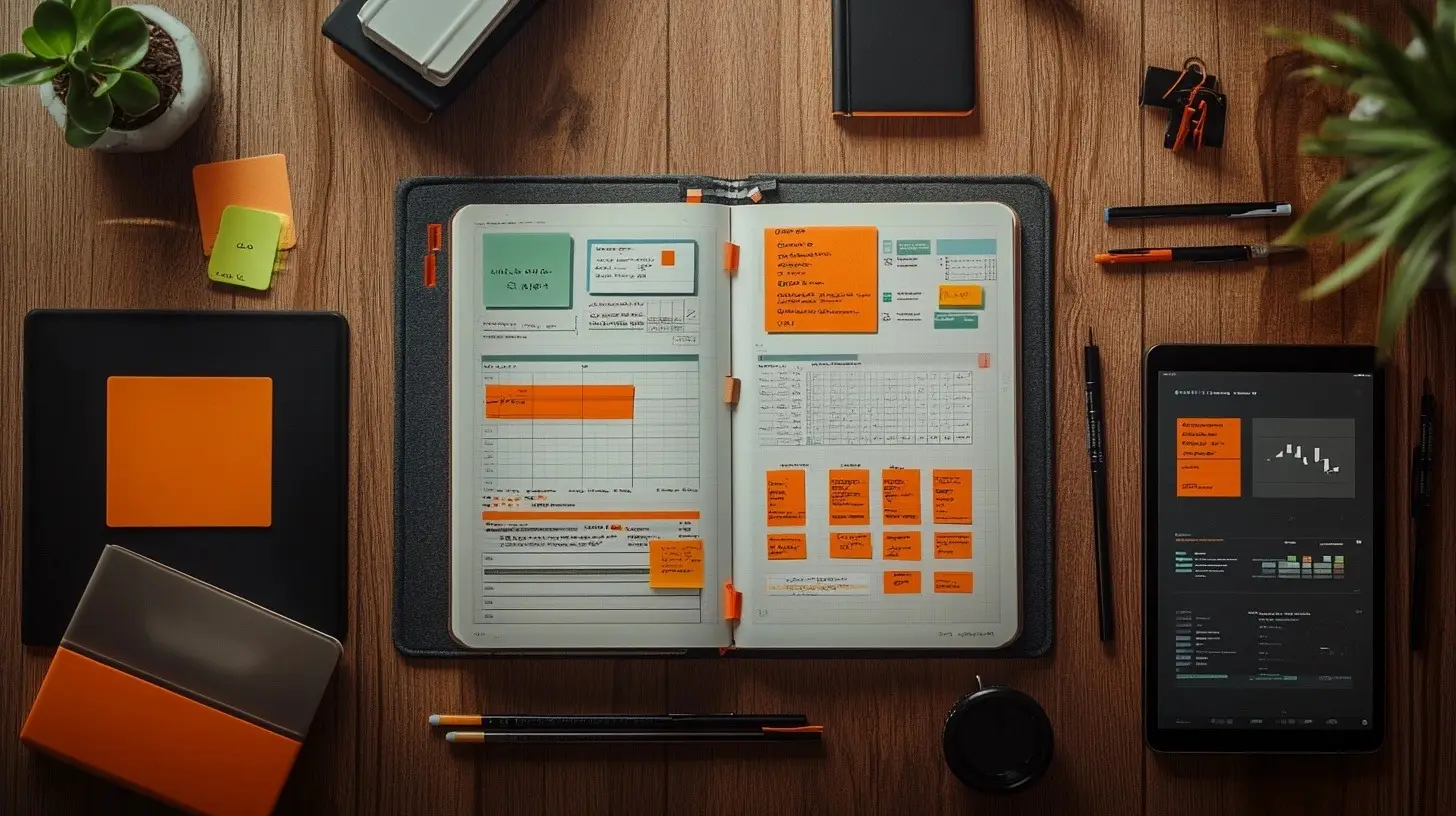
A task management journal is a work journal organised so that every task has a place, a status and a time: a daily list with a simple notation key, a weekly plan, time blocks that protect focused work, project pages for anything with more than a handful of steps, and a weekly and monthly review that keeps the whole system honest. It combines the tactile clarity of writing things down with the reminders and sync that digital tools do better.
This guide sets the system up step by step, gives the daily and weekly layouts, explains time blocking with five kinds of block and a worked schedule, compares paper and digital formats, and closes with the review routine. Career tracking belongs in the career progress journal and reflective writing in the journal of reflection; this page stays on tasks and time.
Quick Answer: A task management journal tracks daily tasks with a bullet-journal notation key, plans the week on one spread, blocks the day into focus, administrative, break, meeting and personal time, keeps a page per project, and ends each week and month with a short review. Set it up in six steps, keep one notation system throughout, and pair it with a digital calendar only for reminders and team tasks.
Definition: A task management journal is a notebook or document structured around daily task lists, weekly plans, time blocks, project pages and review routines, using consistent symbols to show each task’s status.
Key Evidence: The American Academy of Family Physicians recommends a written or digital task system with lists synced to a calendar, and Full Focus sets out the five habits behind it: clear goals, small steps, a ranked list, regular adjustment and reflection.
Context: Time blocking, which used to have its own page here, now lives in this journal as a section of its own.
Key Takeaways
- One notation key, used everywhere: a dot for a task, an X for done, a right arrow for moved, a slash for on hold, a circle for an event.
- Daily page in six parts: date, top three priorities, task list, schedule, notes, reflection.
- Five kinds of time block: focus, administrative, break, meeting and personal, with buffer space between them.
- Paper for thought, digital for reminders: keep the plan in the journal and let a calendar or task app handle alerts and team tasks.
- Review daily, weekly and monthly: the review is what turns a list into a system.
Setting Up Your Task Management System
Step 1: Pick Your Journal
A dot-grid notebook is the most flexible base, though lined or blank pages work. Some people prefer an electronic journal for access on several devices and easy transfer of tasks; the American Academy of Family Physicians supports either, provided the lists sync to a calendar.
Step 2: Organise Sections
- Daily task lists (see Daily Task Management Layout)
- Weekly planning (see Weekly Planning Framework)
- Time blocks (see Time Blocking in Your Work Journal)
- Project pages (see Project Task Management)
- Task classification (see Task Classification System)
Step 3: Choose One Notation Key
The notation comes from bullet journaling (Get Organized HQ). Use one key across every page of the journal, so a glance at any list tells you its state:
| Symbol | Meaning |
|---|---|
| Dot | A task to do |
| X | Done |
| Right arrow | Moved to another day or list |
| Slash | On hold |
| Circle | An event or appointment |
| Asterisk | Priority |
Step 4: Scheduling Habits
From Full Focus, the five habits that make a task system work:
- Set plain goals
- Break tasks into small steps
- Rank the task list
- Keep adjusting the plan
- Reflect on what worked and what did not
Step 5: Plan Daily, Weekly and by Project
- Daily lists: the day’s tasks, deadlines and time blocks.
- Weekly plan: the week’s goals, meetings and key tasks on one spread.
- Project pages: a page per project for its steps, progress and notes.
Step 6: Add Analysis Tools
Add time tracking and goal templates so the weekly review has numbers to read (Journaling Habit). The goal setting journal templates cover the goal side, and the Productivity Analysis Tools section below covers the rest. If you are new to work journaling, start with how to start a career development journal and the work journal template.
Daily Task Management Layout
Layout Essentials
- Date and day at the top of the page.
- Top priorities: the three tasks that matter most today.
- To-do list: every task for the day, one per line, marked with the notation key.
- Schedule: the day’s time blocks, meetings and appointments.
- Notes: ideas, reminders and anything that comes up during the day.
- Reflection: at the end of the day, what got done and what moves to tomorrow.
Notation in Practice
| Task | Status |
|---|---|
| Finish project report | X (done) |
| Team meeting | Circle (event) |
| Plan client call | Right arrow (moved to tomorrow) |
| Rework presentation | Slash (on hold) |
Reflection and Review
The end-of-day reflection links the daily page to the longer record: professional growth in the professional development journal, career milestones in the career progress journal, and goals in the goal setting journal templates. For prompts that suit a work journal, see career development journal prompts.
Weekly Planning Framework
Weekly Big Picture
At the start of each week, sketch a weekly plan that captures the main goals and tasks. It is the map the daily pages follow.
- Main goals: three to five things to achieve this week.
- Important meetings: any must-attend meetings or events.
- Immediate tasks: what needs attention right away.
Sample Weekly Overview Layout
| Day | Goals | Meetings and events | Key tasks |
|---|---|---|---|
| Monday | Goal 1, Goal 2 | Team meeting, 10:00 | Finish the report |
| Tuesday | Goal 1, Goal 3 | Client call, 14:00 | Work through feedback |
| Wednesday | Goal 2, Goal 4 | Prepare the presentation | |
| Thursday | Goal 3, Goal 5 | Training, 15:00 | Finalise the budget |
| Friday | Goal 4, Goal 5 | Team huddle, 9:00 | Weekly review |
Daily Details
Once the weekly map is in place, break the tasks down day by day. Each day gets its tasks, its time slots and its reflection space.
- Morning: the tasks that need the most energy.
- Afternoon: routine or easier work.
- Evening: prepare tomorrow and note today’s wins.
Weekly Recap
When the week ends, pause and look at how it went. Three questions are enough:
- What did I achieve this week?
- Where did I get stuck?
- What will I change next week?
Projects with many moving parts get their own treatment in the project planning journal.
Time Blocking in Your Work Journal
Time blocking assigns each task or kind of work to a fixed slot in the day, so the schedule decides what you are doing instead of the inbox. In a work journal it takes one column beside the task list, and it is the part of the system that protects focused work from everything else.
Five Kinds of Time Block
- Focus blocks are for the hard, high-value work: notifications off, no multitasking. A two-hour block first thing for a large project or a substantial report is the typical shape.
- Administrative blocks gather routine work such as email, filing and booking appointments into one slot, which keeps the focus blocks untouched.
- Break blocks are scheduled, not optional: a fifteen-minute stretch or a short walk roughly every ninety minutes keeps attention working through the day.
- Meeting blocks keep meetings in their own slots so they cannot spread into focus or admin time. Afternoons tend to suit them, leaving mornings for the demanding work.
- Personal time blocks hold exercise, hobbies and family time, treated with the same seriousness as work tasks so the boundary between the two holds.
Example Schedule
| Time | Block type | Description |
|---|---|---|
| 7:00 - 8:00 | Personal time | Morning exercise |
| 8:00 - 10:00 | Focus block | Project work |
| 10:00 - 10:15 | Break block | Short walk |
| 10:15 - 12:00 | Focus block | Report writing |
| 12:00 - 1:00 | Personal time | Lunch |
| 1:00 - 2:00 | Administrative block | Email and admin tasks |
| 2:00 - 4:00 | Meeting block | Team meetings |
| 4:00 - 4:15 | Break block | Afternoon tea |
| 4:15 - 5:30 | Focus block | Follow-up tasks |
Day Theming
Day theming gives each day one job, which cuts the mental clutter of switching between kinds of work.
| Day | Theme |
|---|---|
| Monday | Projects |
| Tuesday | Meetings |
| Wednesday | Content |
| Thursday | Admin |
| Friday | Reflect and plan |
Colour Coding
A colour per block type makes the day readable at a glance.
| Colour | Task type |
|---|---|
| Blue | Meetings |
| Green | Project work |
| Yellow | Personal development |
Buffer Space Between Blocks
Leave buffer space between blocks to absorb overrun and interruptions, so one late meeting does not push the whole afternoon.
| Task | Scheduled time | Buffer |
|---|---|---|
| Team meeting | 10:00 - 11:00 | 11:00 - 11:30 |
| Writing the report | 11:30 - 1:00 | 1:00 - 1:30 |
Paper or Digital: Choosing Your Format
Digital time blocking is available on any device, connects to task managers, email and project tools, lets you move or delete blocks in seconds, and sends reminders. Paper time blocking is tactile, free of alerts, personal, and slower in a way that puts more thought into the plan.
| Factor | Digital | Paper |
|---|---|---|
| Access | Any device | Physical only; it has to be with you |
| Integration | Links to other apps | None |
| Rescheduling | Easily moved or changed | Manual |
| Reminders | Automatic alerts | You have to remember |
| Personal touch | Whatever the app allows | Unlimited |
| Distraction level | Notifications compete for attention | Easier to stay focused |
| Thoughtful planning | Fast | More engagement with the plan |
Most people end up with both: the plan and the daily page on paper, and digital tools for what paper cannot do. Todoist holds to-dos and reminders that sync across devices, Slack carries team updates that get noted into the journal, and Google Calendar holds the events that the schedule column mirrors (The Seana Method; David Karinguri on Medium). If you are still deciding which formats suit you, find your journaling style covers the options.
Project Task Management
Task Breakdown and Categorisation
Break the project into small pieces, then give each a priority based on deadline and significance, using the priority levels in the Task Classification System below.
Task Scheduling and Time Blocking
Give each project task a slot in the schedule and keep to it. Adjust the plan each morning so it stays current; the Time Blocking section above covers the block types.
Task Tracking and Monitoring
| Task | Assigned | Due | Status | Notes |
|---|---|---|---|---|
| Project brief | 01/10/2023 | 01/15/2023 | Done | Sent to the manager |
| Design phase | 01/16/2023 | 01/25/2023 | In progress | Waiting on feedback |
| Implementation plan | 01/26/2023 | 02/05/2023 | Not started | Meeting scheduled |
Resource Allocation
Note what each task needs, so bottlenecks show early and resources can be moved. The project planning journal goes deeper on this.
Using Project Management Tools
Project management software can automate routine steps, keep documents in one place and show real-time progress (ClickUp). The journal remains the place where the plan is thought through; the tool carries the shared record.
Integrating Insights and Analysis
| Metric | Current | Improvement needed |
|---|---|---|
| Task completion rate | 85% | Speed up delivery |
| Resource utilisation | 70% | Fine-tune allocation |
| Deadline adherence | 90% | Hold steady |
Task Classification System
Categories of Tasks
| Category | Description |
|---|---|
| Work tasks | Job-related work, such as projects |
| Personal tasks | Personal errands and to-dos |
| Learning tasks | Courses and skill-building |
| Miscellaneous | Anything that is not pressing |
Priority Levels
| Priority | Description |
|---|---|
| High | Must be done now |
| Medium | Important but not immediate |
| Low | Can wait until next week |
Urgency Matrix
The Eisenhower matrix separates urgency from importance.
| Urgency | Description |
|---|---|
| Urgent | Do it now |
| Not urgent | Can wait |
Combining Classification Systems
| Task | Category | Priority | Urgency |
|---|---|---|---|
| Finish project report | Work | High | Urgent |
| Grocery shopping | Personal | Medium | Not urgent |
| Online course module | Learning | High | Not urgent |
| Organise desk | Work | Low | Not urgent |
Long-term Goal Alignment
Keep long-term goals in their own section and check regularly that the daily work is moving toward them. The goal setting journal templates give the structure.
Advanced Task Tracking
Advanced Tracking with Tables
When several projects run at once, a status table shows the whole picture using the same notation key as the daily page.
| Task | Deadline | Status |
|---|---|---|
| Finish project proposal | July 15 | X (done) |
| Revamp client slides | July 20 | Dot (to do) |
| Submit quarterly report | July 25 | Right arrow (moved) |
Delegation and Routines
Hand tasks to the people best placed to do them and set routines for the recurring ones (David Karinguri on Medium). Both free time for the work only you can do.
Continuous Review and Adjustment
Give the system a regular once-over: what has been done, what keeps slipping, and what to change. The monthly review below is where that happens.
Productivity Analysis Tools
Time Tracking
Tracking where the hours go shows the time sinks. Toggl and Clockify work for digital tracking; on paper a simple table does the job.
| Activity | Time spent (hours) | Productivity score (1-10) |
|---|---|---|
| Emails | 1.5 | 6 |
| Meetings | 2.0 | 7 |
| Project work | 3.5 | 8 |
| Break | 0.5 | n/a |
| Administrative | 1.0 | 5 |
Task Completion Metrics
| Day | Tasks completed | Tasks pending | Completion rate (%) |
|---|---|---|---|
| Monday | 8 | 2 | 80 |
| Tuesday | 10 | 0 | 100 |
| Wednesday | 7 | 3 | 70 |
| Thursday | 9 | 1 | 90 |
| Friday | 6 | 4 | 60 |
Goal Achievement Tracking
| Goal | Sub-tasks | Progress (%) |
|---|---|---|
| Launch new project | Research, planning | 70 |
| Improve SEO | Keyword research, writing | 60 |
| Upskill in data analytics | Complete online course | 80 |
Weekly and Monthly Review Routine
- Daily check-in: each evening, mark what was done and move the rest to tomorrow, so the journal stays accurate.
- Weekly review: at the end of the week, a short progress report. Did the week hit its goals, and what changes for next week?
- Monthly overview: a longer look at the goals, which strategies need rethinking, and what next month is for.
| Week | Tasks completed | Tasks carried over | New tasks |
|---|---|---|---|
| 1 | 15 | 5 | 10 |
| 2 | 18 | 3 | 7 |
| 3 | 20 | 2 | 5 |
| 4 | 17 | 4 | 6 |
Why a Task Management Journal Matters
A task management journal matters because a list on its own only tells you what is owed. Adding a status key, time blocks and a weekly review turns it into a record of what actually happened to your time, which is the only basis on which next week’s plan can improve.
Conclusion
Set the journal up in six steps, keep one notation key, plan the week on one spread, block the day into five kinds of time with buffers between them, keep a page per project, and review daily, weekly and monthly. Let a calendar and a task app handle reminders and team work, and keep the thinking on the page. The system runs on the review: skip it and the journal drifts back to being a list. For the career record that sits alongside this one, see the career progress journal.
For more on building a writing and journaling practice, see Richard French’s books Write Your Way and The Art of Journaling.
Sources
- Full Focus – Beginner’s guide to task management
- Journaling Habit – Guide to a work journal template
- Get Organized HQ – Bullet journal time management
- The Seana Method – Using a bullet journal to improve your life
- American Academy of Family Physicians – Time management for physicians
- ClickUp – Project management tools
- David Karinguri on Medium – Task management tips and tools