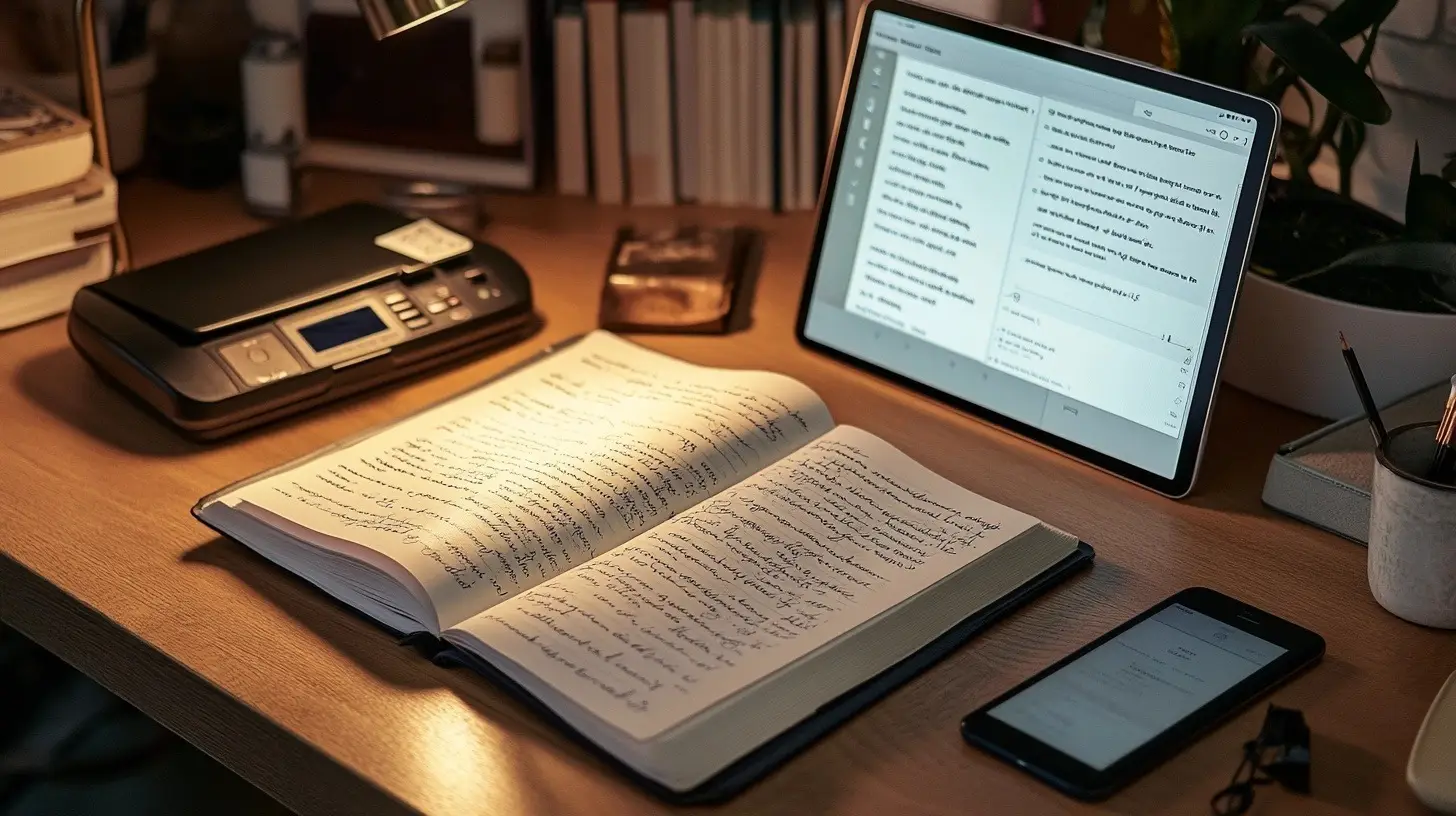
The fastest reliable way to digitize a paper journal is a phone scanning app, one page per shot, exported as one PDF per notebook and named by date. That gets a 100-page notebook into a searchable folder in about half an hour, and Mark Koester, who has scanned a shelf of his own notebooks, puts the scanning at 20 or 30 minutes for 100-plus pages. Transcription, which turns the handwriting into text you can search word by word, is a separate and optional step, and it is the only step where a private page can leave your device.
This guide gives the procedure in four phases with a time budget for each, a copyable file-naming template, a transcription prompt, and a three-line privacy rule you apply page by page. It ends with a 30-minute first session and a short list of cases where digitizing is not worth the effort.
Quick Answer: Scan one page at a time with a phone app (Genius Scan, or the scanner built into Apple Notes or Google Drive), export one PDF per notebook, and name each file by date. Budget about 20 to 30 minutes of scanning per 100 pages. Transcribe only the pages you will want to search by word, and keep pages you would not show a stranger off cloud services entirely: transcribe them with a local model or leave them as images.
Definition: Digitizing a paper journal means capturing each page as an image or PDF; transcribing it means converting the handwriting to text. The first gives you a browsable archive, the second a searchable one.
Key Evidence: Mark Koester's write-up of scanning his own notebooks reports 20 or 30 minutes for a 100-plus page journal with a phone app, and about an hour per notebook once editing is included. Day One's import guide lists CSV, JSON and plain text as import formats, with no PDF option, so transcription is what makes an app import possible.
Context: Free handwriting transcription through a chatbot app, as The Gadgeteer describes, is convenient but means uploading the page to a third party; A Fading Thought's workflow names LM Studio with a local model as the private alternative.
Key Takeaways
- Scan one page per shot with the app already on your phone (Apple Notes or Google Drive); Genius Scan is Koester's pick if you want more control.
- Budget 20 to 30 minutes of scanning per 100 pages, then 15 minutes to make one PDF per notebook and name it YYYY-MM_notebook-NN_topic.pdf.
- Decide per page before transcribing: never leaves the device, can go to a cloud model, or needs no transcription. Most pages are the third.
- Day One imports CSV, JSON and plain text, with no PDF option, so an app import needs transcribed text with a date column.
- Run a 30-minute first session on ten pages of one notebook before deciding about the shelf.
Pick a capture method
Four methods cover almost everyone. The phone app wins for anything under a few hundred pages; the sheet-fed scanner wins for thousands of pages if you are willing to destroy the notebooks.
| Method | Cost | Time per 100 pages | Notebook kept | Best for |
|---|---|---|---|---|
| Phone scanning app | Free (Apple Notes, Google Drive, Genius Scan) | 20 to 30 minutes of scanning (Koester) | Yes | Most journals; anything bound; a first session |
| Flatbed scanner | A desk scanner you may already own | Slower than a phone; Koester calls the load-and-scan cycle tedious | Yes, if the spine is not pressed flat | A few pages that matter, at the highest quality |
| Sheet-fed scanner after cutting the binding | A document scanner with a feeder | Minutes; Katie Songer used this route for thousands of pages | No | Large collections you never need to hold again |
| Scanning service | Quoted per page | The service's turnaround | Usually no | Volume you will not do yourself; ask whether they cut bindings |
Read Songer's account before choosing the third row: she found scanning bound pages one at a time prohibitively slow and cut the bindings off.
Run the four phases
Times are a budget for one 100-page notebook. Capture is the only phase with a published figure; the rest depend on how tidy you want the result.
Phase 1: capture the pages (20 to 30 minutes)
Use one page per shot, never an open spread; The Gadgeteer's guide makes the same point, because a spread gives you two entries in one image and a curved gutter that edge detection cannot straighten. Put the notebook on a dark, flat surface under even light, let the app find the edges and fix the contrast, and do not edit by hand. If ink has bled through from the other side, slide a black sheet of paper behind the page and reshoot. Apple's Notes app and the Google Drive app both scan to PDF for free; Koester's preferred app after testing the field is Genius Scan, and he notes that Scanbot Pro and Adobe Scan now need a subscription.
Phase 2: make one PDF per notebook and name it (15 minutes)
Export the whole notebook as a single PDF, then split it only where an entry or a month starts. Name files so they sort by date without opening them:
YYYY-MM_notebook-NN_topic.pdf2019-03_notebook-07_general.pdf 2021-11_notebook-12_grief.pdf 2023-06_notebook-15_work-move.pdf
Rule for undated pages: use the date of the nearest dated entry before them.
Koester adds a table of contents to each notebook as a further step; it is optional and it is where his hour per notebook goes.
Phase 3: transcribe, optionally (30 to 60 minutes)
Transcription is what turns "somewhere in the 2021 notebooks" into a word search. It is also the only phase where the page leaves your phone, so decide first, per page, with three lines:
- Never leaves the device: transcribe with a local model or not at all. A Fading Thought's workflow names LM Studio running a local model as the private route.
- Can go to a cloud model: pages you would read aloud to a friend. The Gadgeteer's method uses the free ChatGPT app on a phone and works with other chatbot apps.
- Needs no transcription: most pages. Browsing a dated PDF is enough when you know roughly when something happened.
Paste this prompt with the page image and treat the result as a draft:
Transcribe this handwritten page as plain paragraphs. Keep my spelling and my crossings-out. Mark any word you cannot read as [?]. Do not summarise, correct or add anything.
Handwriting recognition fails in predictable places. Cursive joins between short words come out as one wrong word; reread any sentence that does not parse. Margin notes get merged into the main text or dropped; transcribe them yourself with a "[margin]" tag. Dates written as numbers only ("3/4") are read in the wrong order; type the date line yourself, in the file-name format, at the top of every transcript. Bleed-through from the reverse page produces phantom words; reshoot with the black sheet before transcribing.
Phase 4: file the results (10 minutes)
Two things go in two places. The PDFs go in a dated folder, backed up wherever your other files are backed up. The transcripts, if any, go either beside them as text files or into a journaling app. Day One's import guide lists CSV, JSON and plain text (plain text on the Mac app only), along with Journey, Diaro and Apple Journal exports, so an app import means a text or CSV file with a date column. The digital journaling setup guide covers tags and backups once the entries are in. Keep the paper. Some pages you will want to search, and some you will want to see in your own handwriting, and a scan does not remove the second need.
Decide page by page what to scan
The three-line rule in Phase 3 is easier to apply with an example of each kind. These are illustrative.
- Scan and transcribe: a reading log, project notes, a travel journal, a page of ideas you keep meaning to find again. Searchable text is the whole point.
- Scan only, no upload: entries about a marriage, a diagnosis, a colleague, money. A dated image on your own device is findable enough, and nothing about it sits on a server.
- Do not scan: pages you wrote to get something out of your head and never intend to reread, and any page that names another person's private matters. The notebook keeps them; the archive does not need them.
In The Art of Journaling, chapter 9, I suggest scanning or photographing key entries as a searchable backup and keeping highly sensitive entries on the device. That is the whole of the privacy rule; the digital journal privacy guide covers the app and account side.
Do a first session in 30 minutes
Take one notebook and its first ten pages. Scan them with the app already on your phone, export the PDF, name it with the template, then transcribe one ordinary page with the prompt and count the errors. Thirty minutes covers all four phases at that scale, and at the end you know how long capture takes on your pages, whether your handwriting transcribes well enough to bother, and whether the folder will ever be opened. Decide about the rest of the shelf on that evidence.
Why Digitizing a Paper Journal Matters
Two reasons earn the time. A paper journal exists in one copy, and one PDF per notebook in a backed-up folder is the only insurance against fire, flood or a house move that costs an afternoon. And a shelf of notebooks cannot be searched: finding the entry about a decision from four years ago means remembering which notebook, then reading. Dated files narrow that to a month, and transcribed pages narrow it to a word.
It stops mattering when the archive would not be used. If you never reread your journals, a digital copy moves the unopened notebooks from a shelf to a folder. If the notebooks are the point, a grief journal you want to hold, photograph the five pages you return to and stop. And if the real question is which journal to write in next, the hybrid paper-and-app system is the better answer.
Related reading
- How to Start Digital Journaling: Setup, Tags, Photos and Backups
- Digital Journal Privacy: How to Protect Your Entries
- A Hybrid Journaling System: What Goes on Paper, What Goes in the App
- Digital vs Handwritten: Choosing the Right Format
Sources
- Mark Koester, "Digitalize Your Paper Journals" – 20 or 30 minutes of scanning per 100-plus page notebook, about an hour per notebook with editing, Genius Scan as his preferred app, subscription note on Scanbot Pro and Adobe Scan, optional table of contents
- The Gadgeteer, "From paper to pixels" – free transcription with the ChatGPT app on a phone, and one page per photo
- A Fading Thought, "Digitize handwritten journals" – LM Studio with a local model as the privacy option for transcription
- Katie Songer, "How I digitized my journals" – cutting bindings and using a sheet-fed scanner for thousands of pages; single-page scanning of bound notebooks as prohibitively slow
- Day One, "Importing Data to Day One" – supported import formats (CSV, JSON, plain text on macOS, Journey, Diaro, Day One Classic, Apple Journal)
- Apple Support, "How to scan documents on your iPhone or iPad" – the Notes app scans documents at no cost
- Google Drive Help, "Scan documents with Google Drive" – the Drive mobile app scans to searchable PDFs